- Cisco Community
- Technology and Support
- Security
- Security Knowledge Base
- ISE ERS API Examples
- Subscribe to RSS Feed
- Mark as New
- Mark as Read
- Bookmark
- Subscribe
- Printer Friendly Page
- Report Inappropriate Content

- Subscribe to RSS Feed
- Mark as New
- Mark as Read
- Bookmark
- Subscribe
- Printer Friendly Page
- Report Inappropriate Content
on
03-10-2016
01:07 PM
- edited on
04-16-2023
02:52 PM
by
hslai

Contents
- What is REST?
- ISE REST APIs
- ERS OpenAPI Specification in ISE 3.2
- Learn ISE REST Programming Fundamentals
- Enable the ISE REST APIs
- Administrator Groups for REST APIs
- Create REST API Users
- How to Invoke the REST APIs
- cURL
- Using Environment Variables
- Create
- Create an Internal User with cURL and JSON
- Create an Internal User with cURL and an XML File
- Create an Endpoint Group and Assign an Endpoint
- Create Endpoint Group
- Create Endpoint
- Create an Endpoint with Custom Attributes
- Define ISE Endpoint Custom Attributes
- Create an Endpoint with Custom Attributes
- Read
- Get All ISE Administrators Using cURL and JSON
- Get All Endpoints in a Specifc Endpoint Identity Group
- Get Endpoint Identity Group by Name
- Get Endpoint by MAC
- Get Endpoint Info by Resource ID
- Update
- Update Endpoint : Statically Assign to an Identity Group
- Delete
- Delete an Endpoint
- Bulk
- Create IP-SGT Static Mappings for SXP
- Update IP-SGT Static Mappings for SXP
- Delete IP-SGT Static Mappings for SXP
- Resources
What is REST?
REST (REpresentational State Transfer) APIs allow you or any software or script to Create, Read, Update, or Delete resources represented in a markup language such as JSON or XML over HTTP/S. In ISE, this capability is called Extensible RESTful Services (ERS). You may read or write to an ISE Policy Administration Node (PAN) but you may only read objects from an ISE Policy Service Node (PSN).
For example, you may discover all of the ISE nodes in an ISE deployment with a single REST call below to find it has 9 nodes - their names are highlighted in yellow. To find out more about each node's configuration, you would need to query their respective href URLs.

ISE REST APIs
We have published the ISE REST APIs (http://cs.co/ise-api) in Cisco DevNet for your convenient reference. This including our original ERS APIs and our latest OpenAPIs. You may even see a summary of minimum ISE versions for a resource.
Once you have enabled the REST API in ISE (see below), you may use any SuperAdmin, ERS Admin or ERS Operator group accounts to view the API references on your ISE PAN node at https://ise-pan:9060/ers/sdk and https://ise-pan/api/swagger-ui/index.html.
With the ISE API Gateway feature added in ISE 3.1, you no longer need to specify port 9060 for the ERS APIs - you may just use a regular HTTPS call on port 443.
ERS OpenAPI Specification in ISE 3.2
The ISE 3.2 release now has the ERS configuration API documented using the OpenAPI specification! You may export the ERS_V1.json file from ISE 3.2 and later from the Administration > System > Settings > API Settings page.
Learn ISE REST Programming Fundamentals
If you want to learn more about REST and how you can take advantage of these capabilities in ISE, Cisco DevNet has an excellent video series on Network Programmability Basics. Specifically, the Programming Fundamentals module covers the following topics to give you the background and tools to use ISE APIs:
- Data Formats: Understanding and using JSON, XML and YAML
- APIs are Everywhere... but what are they?
- REST APIs Part 1: HTTP is for more than Web Browsing
- REST APIs Part 2: Making REST API Calls with Postman
- Python Part 1: Python Language and Script Basics
- Python Part 2: Working with Libraries and Virtual Environments
- Python Part 3: Useful Python Libraries for Network Engineers
We have published several ISE REST API packages and resources to help you with your scripting and automation needs with ISE:
- ciscoisesdk Python Package | Documentation | Repository
- cisco.ise Ansible Modules | Documentation | Repository
- isegosdk Go SDK | Documentation | Repository
- ciscoise Terraform Provider | Documentation | Registry | Repository
We also have hosted a few ISE Webinars:
- ISE REST APIs Webinar [20210406-ISE-REST-APIs-Webinar GitHub repository]
- ISE 3.1 APIs, Ansible, and Automation Webinar [GitHub Repository]
You may learn and test ISE REST APIs with curl, Python, Postman, and Ansible and more using our free Cisco DevNet Learning Lab: ISE 3.1 with Ansible Automation :
Enable the ISE REST APIs
The ISE REST APIs - also known as External RESTful Services (ERS) - are disabled by default for security. You must enable it:
- Login to your ISE PAN using the admin or other SuperAdmin user.
- Navigate to Administration > System > Settings and select API Settings from the left panel.
- Under the API Service Settings tab:
- Enable the ERS APIs (Read/Write)
- Enable the Open API (Read/Write)
- Do not Enable CSRF Check unless you why and how to use the tokens.
- Select Save to save your changes.
Administrator Groups for REST APIs
The following ISE Administrator Groups allow REST API access:
| ISE Admin Group | Permissions |
| SuperAdmin | Read/Write |
| ERSAdmin | Read/Write |
| ERSOperator | Read Only |
You may also map these groups to external Active Directory (AD) groups so you do not need to create local administrators on ISE.
Create REST API Users
You can use the default ISE admin account for ERS APIs since it has SuperAdmin privileges. However, it is recommended to create separate users with the ERS Admin (Read/Write) or ERS Operator (Read-Onlly) privileges to use the ERS APIs so you can separately track and audit their activities.
Note: the MNT API uses different permissions. If you are going to do MNT and ERS you will need a group with both permissions
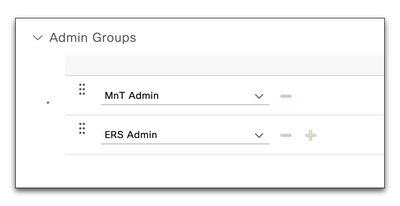
- Navigate to Administration > System > Admin Access
- Choose Administrators > Admin Users from the left pane
- Choose +Add > Create an Admin User to create a new ers-admin and ers-operator accounts.
New Administrator Name ers-admin ers-operator Status Enabled Enabled Password ****** ****** Re-Enter Password ****** ****** Admin Groups ERS Admin ERS Operator
How to Invoke the REST APIs
cURL
Many of the examples below will utilize the command line utility cURL. This is because cURL is the most universal and flexible choice for quickly doing HTTP/S-based REST calls natively in Linux and macOS and may be easily added to Windows.
To get a list of all ISE nodes in your deployment, try the following :
curl --insecure \
     --include \
     --header 'Accept: application/json' \
     --user admin:ISEisC00L \
     https://ise1.example.com:9060/ers/config/node
| curl Option | Description |
| -k, --insecure | Accept insecure connections. Useful if you are playing with a demo installation of ISE using a self-signed certificate. |
| -H, --header {header} | Header to include in the request. Use one per header. |
| -i, --include | Include the HTTP result headers in the output. This is useful after creating an object to verify the created resource Location identifier: Location: https://ise-pan:9060/ers/config/internaluser/75a43806-bd5e-42ef-80a8-c47e759234bd |
| -L, --location | Automatically follow redirects |
| -s, --silent | Silent / quiet mode: Do not show progress meter or error messages. |
| -u, --user {username:password} | Specify the username & password to authenticate the ERS user |
| -d, --data '{content}' | The data payload to send, as a string or file, typically with JSON or XML content. |
Using Environment Variables
In the above example, we showed you the ISE admin username and password ISEisC00L in the clear on the command line. It is a bad security practice to do API work with your passwords to security applications like ISE exposed for anyone to see over your shoulder or in your command line history. For this reason, we will utilize environment variables in our command line work as a best practice with our ISE REST API usernames and passwords for all further examples.
The fastest to use environment variables in your command line scripts is to create temporary environment variables using the export command (or set command on Windows) in your terminal:
export ISE_HOSTNAME=ise1.example.com   # for small ISE deployments
export ISE_PAN=ise-ppan.example.com    # large ISE deployments use the PAN node for ERS APIs
export ISE_MNT=ise-pmnt.example.com    # large ISE deployments use the MNT node for MNT APIs
export ISE_USERNAME=admin
export ISE_PASSWORD=ISEisC00L
You may also add the lines above to an ise_secrets.sh file in a .secrets folder in your home directory then, when you want to use them in your terminal session, run:
source ~/.secrets/ise_secrets.sh
You may view and verify your current environment variables using the following commands and access them in scripts or on the command line by prefixing them with a `$`:
env
printenv ISE_USERNAME
echo $ISE_USERNAME
The same example cURL command above using environment variables might look like this:
curl --insecure \
     --header 'Accept: application/xml' \
     --user $ISE_USERNAME:$ISE_PASSWORD \
     https://$ISE_HOSTNAME/admin/API/mnt/Version
If you want to verify your environment variable values, use the echo command to help you troubleshoot!
> echo $ISE_USERNAME:$ISE_PASSWORD https://$ISE_PAN/ers/config/node

admin:ISEisC00L https://ise1.example.com/ers/config/node
Create
Create an Internal User with cURL and JSON
Create a new, local network user in the default Internal Users database and do not require them to change his password upon login:
curl --insecure --include \
     --header 'Content-Type:application/json' \
     --header 'Accept: application/json' \
     --user $ISE_REST_USERNAME:$ISE_REST_PASSWORD \
     --request POST https://$ISE_PAN:9060/ers/config/internaluser \
     --data '
{
  "InternalUser" : {
    "name" : "thomas",
    "password" : "ISEisC00L",
    "changePassword" : false
  }
}'
Response:
HTTP/1.1 201 Created
Set-Cookie: JSESSIONIDSSO=D4C830896B06B529CECCA61640B0193D; Path=/; Secure; HttpOnly
Set-Cookie: APPSESSIONID=C93E2BE40459768481F24D6DFA10B29D; Path=/ers; Secure; HttpOnly
Cache-Control: no-cache, no-store, must-revalidate
Pragma: no-cache
Expires: Thu, 01 Jan 1970 00:00:00 GMT
Location: https://ise-pan:9060/ers/config/internaluser/75a43806-bd5e-42ef-80a8-c47e759234bd
Date: Sat, 17 Mar 2018 20:32:31 GMT
Content-Type: application/json;charset=utf-8
Content-Length: 0
Server:
To view the user, login to the ISE PAN and navigate to Administration > Identity Management > Groups > User Identity Groups and you should see the new user in the list.
Create an Internal User with cURL and an XML File
Create an add_internal_user.xml XML file to create user user2 :
<?xml version="1.0" encoding="utf-8" standalone="yes"?>
<ns3:internaluser xmlns:ns2=“ers.ise.cisco.com” xmlns:ns3=“identity.ers.ise.cisco.com” name=“user2”>
  <changePassword>true</changePassword>
  <customAttribute/>
  <enabled>true</enabled>
  <firstName>first</firstName>
  <lastName>last</lastName>
  <password>C!sco123</password>
</ns3:internaluser>
Run the curl command with the file by specifying the --data option with an @ before the filename:
curl --insecure -v \
     --header "Content-Type: application/vnd.com.cisco.ise.identity.internaluser.1.0+xml" \
     -X POST \
     https://$ISE_PAN:9060/ers/config/internaluser \
     --data @add_internal_user.xml
Create an Endpoint Group and Assign an Endpoint
Create Endpoint Group
Create an Endpoint Group called 'Assets':
curl --insecure  \
     --include \
     --header 'Content-Type:application/json' \
     --header 'Accept: application/json' \
     --user $ISE_REST_USERNAME:$ISE_REST_PASSWORD \
     --request POST https://$ISE_PAN:9060/ers/config/endpointgroup  --data '
{
  "EndPointGroup" : {
    "name" : "Assets",
    "description" : "Assets Group"
  }
}'
Response:
HTTP/1.1 201 Created
Set-Cookie: JSESSIONIDSSO=DE751A5AB7DE7632A20D7F0243F70812; Path=/; Secure; HttpOnly
Set-Cookie: APPSESSIONID=B6E01C9EB49B98C8EC3B59AC6EDD555F; Path=/ers; Secure; HttpOnly
Cache-Control: no-cache, no-store, must-revalidate
Pragma: no-cache
Expires: Thu, 01 Jan 1970 00:00:00 GMT
Location: https://ise-pan:9060/ers/config/endpointgroup/f8757da0-03ee-11e9-a407-0242292e7b74
Date: Tue, 18 Dec 2018 19:19:56 GMT
Content-Type: application/json;charset=utf-8
Content-Length: 0
Server:
Create Endpoint
You can now add a new endpoint to this Assets group using a Name, Description, MAC address and the GroupID from above:
curl --insecure  \
     --include \
     --header 'Content-Type:application/json' \
     --header 'Accept: application/json' \
     --user $ISE_REST_USERNAME:$ISE_REST_PASSWORD \
     --request POST https://$ISE_PAN:9060/ers/config/endpoint \
     --data '
{
  "ERSEndPoint" : {
    "name" : "Assets_Endpoint",
    "description" : "Another asset",
    "mac" : "00:01:02:03:04:05",
    "groupId" : "f8757da0-03ee-11e9-a407-0242292e7b74",
    "staticGroupAssignment" : true
  }
}'
Response:
HTTP/1.1 201 Created
Set-Cookie: JSESSIONIDSSO=BF31E7B81F678313870B78394CDBA34E; Path=/; Secure; HttpOnly
Set-Cookie: APPSESSIONID=0AF23384A6152D2BB213E005ED732A34; Path=/ers; Secure; HttpOnly
Cache-Control: no-cache, no-store, must-revalidate
Pragma: no-cache
Expires: Thu, 01 Jan 1970 00:00:00 GMT
Location: https://ise-pan:9060/ers/config/endpoint/3dd754e0-03ef-11e9-a407-0242292e7b74
Date: Tue, 18 Dec 2018 19:43:47 GMT
Content-Type: application/json;charset=utf-8
Content-Length: 0
Server:
The Location field in the Response provides the resource ID for the newly created Endpoint if you want to get the information about it or refer to it in a future request.
To view the new Endpoint Identity Group, login to the ISE Administration node and navigate to Administration > Identity Management > Groups > Endpoint Identity Groups and you should see the name of the new group in the list.
ISE will automatically profile the endpoint in this example (00:01:02:03:04:05) as a "3Com-Device" simply based on it's MAC address without any additional profiling data from the endpoint. You may statically assign it to a profile using the additional attributes:
| Attribute | Type | Description |
| profileId | String | profileID of an ISE endpont Profile. Use the REST command |
| staticProfileAssignment | Boolean | true |
Create an Endpoint with Custom Attributes
You may want to use your own IT web application to register and manage network access for IOT endpoints in your network with ISE. You can do this using the ISE REST APIs although typically you will need to create some endpoint custom attributes in ISE to help you manage ownership, network privileges, and perhaps even an expiration of the authorization.
Define ISE Endpoint Custom Attributes
Login to your ISE Administration node and navigate to Administration > Identity Management > Settings > Endpoint Custom Attributes where you may add custom endpoint attributes:

You must create the custom attributes in the ISE GUI before they can be used via API. Typically people want to create one or more of the following custom attributes for endpoint management:
| Attribute | Type | Description |
| Created | Long | Date and Time of endpoint creation (Unix Epoch time) |
| Expiration | Long | Date and Time of endpoint access expiration (Unix Epoch time) |
| Owner | String | Name or username of employee responsible for endpoint |
| Authorization | String | Name of a network authorization privilege to give the endpoint |
Create an Endpoint with Custom Attributes
You can create a new endpoint just like the last one, only this time, you may add custom attribute fields for managing it:
curl --insecure \
     --include --header 'Content-Type:application/json' \
     --header 'Accept: application/json' \
     --user $ISE_REST_USERNAME:$ISE_REST_PASSWORD \
     --request POST https://$ISE_PAN:9060/ers/config/endpoint \
     --data '
{
  "ERSEndPoint" : {
    "name" : "Demo Device",
    "description" : "IOT device",
    "mac" : "00:01:02:03:04:06",
    "groupId" : "f8757da0-03ee-11e9-a407-0242292e7b74",
    "staticGroupAssignment" : true,
    "customAttributes" : {
      "customAttributes" : {
        "Owner" : "thomas",
        "Authorization" : "Internet",
        "Created" : "1545321639",
        "Expiration" : "1549008000"
      }
    }
  }
}'
Response:
HTTP/1.1 201 Created
Set-Cookie: JSESSIONIDSSO=BECE6E106BFA472A121167EE9195B7FE; Path=/; Secure; HttpOnly
Set-Cookie: APPSESSIONID=4514D067161FC9A1BFA6EB9DAD7B30BE; Path=/ers; Secure; HttpOnly
Cache-Control: no-cache, no-store, must-revalidate
Pragma: no-cache
Expires: Thu, 01 Jan 1970 00:00:00 GMT
Location: https://ise-pan:9060/ers/config/endpoint/ead581e0-0470-11e9-a407-0242292e7b74
Date: Thu, 20 Dec 2018 16:04:23 GMT
Content-Type: application/json;charset=utf-8
Content-Length: 0
Server:
To see the new endpoint definition with it's custom attributes in the ISE Administration node, go to Context Visibility > Endpoints, click on it in the list, then select the Attributes tab:
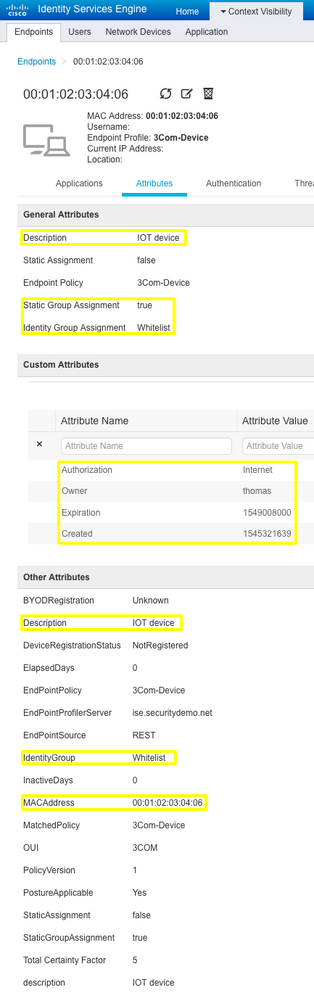
You could now use these endpoint custom attributes in an ISE Authorization policy so that any endpoint with a specific Authorization privilege will be allowed Internet access when connected:

Read
Get All ISE Administrators Using cURL and JSON
curl -insecure \
     --header  'Accept: application/json' \
     --user $ISE_REST_USERNAME:$ISE_REST_PASSWORD \
     https://$ISE_PAN:9060/ers/config/adminuser
Response:
{
  "SearchResult" : {
    "total" : 1,
    "resources" : [ {
      "id" : "55c1b32f-9a89-4969-9ba2-151c8b03d3f1",
      "name" : "admin",
      "description" : "Default Admin User",
      "link" : {
        "rel" : "self",
        "href" : "https://ise-pan:9060/ers/config/adminuser/55c1b32f-9a89-4969-9ba2-151c8b03d3f1",
        "type" : "application/xml"
      }
    } ]
  }
}
Get All Endpoints in a Specifc Endpoint Identity Group
View the first page of Endpoint Identity Groups (up to 20 per page, by default) to see their IDs:
curl \
--insecure \
--location \
--silent \
--header 'Accept: application/json' \
--user $ise_rest_username:$ise_rest_password \
--request GET https://$ise_hostname/ers/config/endpointgroup\?size\=100 \
| jq -C '.[].resources[] | [.id,.name,.description ] | join(" | ")'
"38a73670-8c00-11e6-996c-525400b48521 | Sony-Device | Identity Group for Profile: Sony-Device"
"1e2700a0-8c00-11e6-996c-525400b48521 | Cisco-Meraki-Device | Identity Group for Profile: Cisco-Meraki-Device"
"0a4a50f0-8c00-11e6-996c-525400b48521 | Apple-iDevice | Identity Group for Profile: Apple-iDevice"
"0cc7ad00-8c00-11e6-996c-525400b48521 | BlackBerry | Identity Group for Profile: BlackBerry"
"ffa36b00-8bff-11e6-996c-525400b48521 | Android | Identity Group for Profile: Android"
"0c4eac70-8c00-11e6-996c-525400b48521 | Axis-Device | Identity Group for Profile: Axis-Device"
"2b07d100-8c00-11e6-996c-525400b48521 | Juniper-Device | Identity Group for Profile: Juniper-Device"
"22c6c780-8c00-11e6-996c-525400b48521 | Epson-Device | Identity Group for Profile: Epson-Device"
"aa10ae00-8bff-11e6-996c-525400b48521 | Profiled | Profiled Identity Group"
"aa000c30-8bff-11e6-996c-525400b48521 | Blocked List | Blocked List Identity Group"
"aa178bd0-8bff-11e6-996c-525400b48521 | GuestEndpoints | Guest Endpoints Identity Group"
"3a1b38d0-8c00-11e6-996c-525400b48521 | Synology-Device | Identity Group for Profile: Synology-Device"
"a4cd21c0-fd75-11eb-b43c-ba8c06185168 | OS_X_BigSur-Workstation | Identity Group for Profile: OS_X_BigSur-Workstation"
"3b113190-8c00-11e6-996c-525400b48521 | Vizio-Device | Identity Group for Profile: Vizio-Device"
"3a88eec0-8c00-11e6-996c-525400b48521 | Trendnet-Device | Identity Group for Profile: Trendnet-Device"
"aa13bb40-8bff-11e6-996c-525400b48521 | RegisteredDevices | Asset Registered Endpoints Identity Group"
"4ea2a450-5c7a-11ec-a6b9-ce11946aeeed | Windows11-Workstation | Identity Group for Profile: Windows11-Workstation"
"14f5cac0-8c00-11e6-996c-525400b48521 | Cisco-IP-Phone | Identity Group for Profile: Cisco-IP-Phone"
"aa0e8b20-8bff-11e6-996c-525400b48521 | Unknown | Unknown Identity Group"
"3b76f840-8c00-11e6-996c-525400b48521 | Workstation | Identity Group for Profile: Workstation"
Now let's say we want the Cisco-IP-Phone endpoints with group ID 14f5cac0-8c00-11e6-996c-525400b48521.
If you look at the structure of an endpoint object (this one is a printer) the attribute for the Endpoint Identity Group is groupID:
curl \
  --insecure \
  --location \
  --silent \
  --header 'Accept: application/json' \
  --user $ise_rest_username:$ise_rest_password \
  --request GET https://$ise_hostname/ers/config/endpoint/0e436440-cd53-11ec-bf2c-8220985ab925
{
  "ERSEndPoint" : {
    "id" : "0e436440-cd53-11ec-bf2c-8220985ab925",
    "name" : "00:00:AA:C0:93:18",
    "description" : "Epson Printer",
    "mac" : "00:00:AA:C0:93:18",
    "profileId" : "44031480-8c00-11e6-996c-525400b48521",
    "staticProfileAssignment" : false,
    "staticProfileAssignmentDefined" : true,
    "groupId" : "22c6c780-8c00-11e6-996c-525400b48521",
    "staticGroupAssignment" : true,
    "staticGroupAssignmentDefined" : true,
    "portalUser" : "",
    "identityStore" : "",
    "identityStoreId" : "",
    "link" : {
      "rel" : "self",
      "href" : "https://198.18.133.27/ers/config/endpoint/0e436440-cd53-11ec-bf2c-8220985ab925",
      "type" : "application/json"
    }
  }
}
We can run a query against the endpoints using the groupID attribute matching the Endpoint Group ID for our Cisco-IP-Phones :
curl \
  --insecure \
  --location \
  --silent \
  --header 'Accept: application/json' \
  --user $ise_rest_username:$ise_rest_password \
  --request GET https://$ise_hostname/ers/config/endpoint\?\&filter\=groupId.EQ.14f5cac0-8c00-11e6-996c-525400b48521 \
  | jq -C '.[].resources[] | [.id,.name,.description ] | join(" | ")'

"0b36e790-cd53-11ec-bf2c-8220985ab925 | 00:11:BB:EF:EE:66 | IP Phone"
"0bdc7660-cd53-11ec-bf2c-8220985ab925 | 00:11:BB:5F:C4:28 | IP Phone"
"0c811ad0-cd53-11ec-bf2c-8220985ab925 | 00:11:BB:9E:57:BC | IP Phone"
Get Endpoint Identity Group by Name
Find the endpoint id group with a group name (e.g. GL-0) with XML:
curl --insecure \
     --header 'Accept: application/vnd.com.cisco.ise.identity.endpointgroup.1.0+xml' \
     --user $ISE_REST_USERNAME:$ISE_REST_PASSWORD \
     'https://$ISE_PAN:9060/ers/config/endpointgroup?filter=name.EQ.GL-0'
Response :
<?xml version="1.0" encoding="UTF-8" standalone="yes"?>
<ns2:searchResult xmlns:ns2="ers.ise.cisco.com" total="1">
  <resources>
    <resource name="GL-0" id="d27edfa0-889d-11e3-b246-000c2916b229" description="">
      <link type="application/xml" href="https://ise-pan:9060/ers/config/endpointgroup/d27edfa0-889d-11e3-b246-000c2916b229" rel="self"/>
    </resource>
  </resources>
</ns2:searchResult>
Get Endpoint by MAC
Find the endpoint id using the MAC address :
curl --insecure \
     --header 'Accept: application/vnd.com.cisco.ise.identity.endpointgroup.1.0+xml' \
     --user $ISE_REST_USERNAME:$ISE_REST_PASSWORD \
     'https://$ISE_PAN:9060/ers/config/endpoint?filter=mac.EQ.11:22:33:44:55:66'
Response :
<?xml version="1.0" encoding="UTF-8" standalone="yes"?>
<ns2:searchResult xmlns:ns2="ers.ise.cisco.com" total="1">
  <resources>
    <resource id="046f1250-bc6e-11e4-9baf-000c2916b229">
      <link type="application/xml" href="https://ise-pan:9060/ers/config/endpoint/046f1250-bc6e-11e4-9baf-000c2916b229" rel="self"/>
     </resource>
   </resources>
</ns2:searchResult>
Get Endpoint Info by Resource ID
Get endpoint info by its Resource ID :
curl --insecure \
     --header 'Accept: application/vnd.com.cisco.ise.identity.endpoint.1.0+xml' \
     --user $ISE_REST_USERNAME:$ISE_REST_PASSWORD \
     'https://$ISE_PAN:9060/ers/config/endpoint/046f1250-bc6e-11e4-9baf-000c2916b229'
Response :
<?xml version="1.0" encoding="UTF-8" standalone="yes"?>
<ns3:endpoint xmlns:ns2="ers.ise.cisco.com" xmlns:ns3="identity.ers.ise.cisco.com" id="046f1250-bc6e-11e4-9baf-000c2916b229">
  <link type="application/xml" href="https://ise-pan:9060/ers/config/endpoint/046f1250-bc6e-11e4-9baf-000c2916b229" rel="self"/>
  <groupId>04f15020-f42f-11e2-bd54-005056bf2f0a</groupId>
  <identityStore></identityStore>
  <identityStoreId></identityStoreId>
  <mac>11:22:33:44:55:66</mac><portalUser></portalUser>
  <profileId>36c0ee30-f42f-11e2-bd54-005056bf2f0a</profileId>
  <staticGroupAssignment>false</staticGroupAssignment>
  <staticProfileAssignment>false</staticProfileAssignment>
</ns3:endpoint>
Update
Update Endpoint : Statically Assign to an Identity Group
Create an XML file named endpoint.xml with the endpoint changes :
<?xml version="1.0" encoding="UTF-8" standalone="yes"?>
<ns3:endpoint xmlns:ns2="ers.ise.cisco.com" xmlns:ns3="identity.ers.ise.cisco.com">
  <groupId>d27edfa0-889d-11e3-b246-000c2916b229</groupId>
  <identityStore></identityStore>
  <identityStoreId></identityStoreId>
  <mac>11:22:33:44:55:66</mac>
  <portalUser></portalUser>
  <profileId>36c0ee30-f42f-11e2-bd54-005056bf2f0a</profileId>
  <staticGroupAssignment>true</staticGroupAssignment>
  <staticProfileAssignment>false</staticProfileAssignment>
</ns3:endpoint>
Update ISE using the XML file above :
curl --insecure -X \
     --header 'Content-Type: application/vnd.com.cisco.ise.identity.endpoint.1.0+xml; charset=utf-8' \
     --user $ISE_REST_USERNAME:$ISE_REST_PASSWORD \
     PUT 'https://$ISE_PAN:9060/ers/config/endpoint/046f1250-bc6e-11e4-9baf-000c2916b229' \
     --data @endpoint.xml
Response :
<?xml version="1.0" encoding="UTF-8" standalone="yes"?>
  <ns2:updatedFields xmlns:ns2="ers.ise.cisco.com">
  <updatedField field="groupId">
    <newValue>d27edfa0-889d-11e3-b246-000c2916b229</newValue>
    <oldValue>04ea7250-f42f-11e2-bd54-005056bf2f0a</oldValue>
  </updatedField>
  <updatedField field="staticGroupAssignment">
    <newValue>true</newValue>
    <oldValue>false</oldValue>
  </updatedField>
</ns2:updatedFields>
Delete
Delete an Endpoint
You may quickly delete an endpoint by requesting a Delete using the endpoint ID:
curl --insecure --include \
     --header 'Accept: application/json' \
     --user $ISE_REST_USERNAME:$ISE_REST_PASSWORD \
     --request DELETE https://$ISE_PAN:9060/ers/config/endpoint/ead581e0-0470-11e9-a407-0242292e7b74
Response:
HTTP/1.1 204 No Content
Cache-Control: no-cache, no-store, must-revalidate
Expires: Thu, 01 Jan 1970 00:00:00 GMT
Set-Cookie: JSESSIONIDSSO=913F64A3577206E5D4A390470C0178A1; Path=/; Secure; HttpOnly
Set-Cookie: APPSESSIONID=9759D7179E2036B452FA53393BD71CEE; Path=/ers; Secure; HttpOnly
Pragma: no-cache
Date: Thu, 20 Dec 2018 17:15:50 GMT
Content-Type: application/json;charset=utf-8
Server:
The HTTP 204 is considered a successful Delete.
An HTTP 404 will be returned if the endpoint with that endpoint ID cannot be found or does not exist.
Bulk
# Variables used in bulk examples
iseIP=
iseUser=
isePass=
Create IP-SGT Static Mappings for SXP
curl -X PUT -k -H 'Content-Type: application/xml' -H 'Accept: application/xml' \
-u ${iseUser}:${isePass} -i "https://${iseIP}/ers/config/sxplocalbindings/bulk/submit" \
--data '<?xml version="1.0" encoding="UTF-8" standalone="yes"?>
<ns6:localbindingBulkrequest operationType="create"
resourceMediaType="vnd.com.cisco.ise.sxp.sxplocalbindings.1.0+xml"
xmlns:ns6="sxp.ers.ise.cisco.com"
xmlns:ers="ers.ise.cisco.com"
xmlns:xs="http://www.w3.org/2001/XMLSchema">
    <ns6:resourcesList>
        <ns6:sxplocalbindings>
            <ipAddressOrHost>10.0.0.5</ipAddressOrHost>
            <sgt>Production_Servers</sgt>
            <sxpVpn>default</sxpVpn>
            <vns></vns>
        </ns6:sxplocalbindings>
        <ns6:sxplocalbindings>
            <ipAddressOrHost>10.0.0.6</ipAddressOrHost>
            <sgt>Production_Servers</sgt>
            <sxpVpn>default</sxpVpn>
            <vns></vns>
        </ns6:sxplocalbindings>
    </ns6:resourcesList>
</ns6:localbindingBulkrequest>'
Update IP-SGT Static Mappings for SXP
curl -X PUT -k -H 'Content-Type: application/xml' -H 'Accept: application/xml' \
-u ${iseUser}:${isePass} -i "https://${iseIP}/ers/config/sxplocalbindings/bulk/submit" \
--data '<?xml version="1.0" encoding="UTF-8" standalone="yes"?>
<ns6:localbindingBulkrequest operationType="update"
resourceMediaType="vnd.com.cisco.ise.sxp.sxplocalbindings.1.0+xml"
xmlns:ns6="sxp.ers.ise.cisco.com"
xmlns:ers="ers.ise.cisco.com"
xmlns:xs="http://www.w3.org/2001/XMLSchema">
    <ns6:resourcesList>
        <ns6:sxplocalbindings id="46469af5-364a-4170-953a-1d8f7e968595">
            <ipAddressOrHost>10.0.0.3</ipAddressOrHost>
            <sgt>BYOD</sgt>
            <sxpVpn>default</sxpVpn>
            <vns></vns>
        </ns6:sxplocalbindings>
        <ns6:sxplocalbindings id="6bdfdc83-eef2-43fc-bf6e-f29be257511f">
            <ipAddressOrHost>10.0.0.4</ipAddressOrHost>
            <sgt>Test_Servers</sgt>
            <sxpVpn>default</sxpVpn>
            <vns></vns>
        </ns6:sxplocalbindings>
    </ns6:resourcesList>
</ns6:localbindingBulkrequest>'
Delete IP-SGT Static Mappings for SXP
curl -X PUT -k -H 'Content-Type: application/xml' -H 'Accept: application/xml' \
-u ${iseUser}:${isePass} -i "https://${iseIP}/ers/config/sxplocalbindings/bulk/submit" \
--data '<?xml version="1.0" encoding="UTF-8" standalone="yes"?>
<ns6:localbindingBulkrequest operationType="Delete"
resourceMediaType="vnd.com.cisco.ise.sxp.sxplocalbindings.1.0+xml"
xmlns:ns6="sxp.ers.ise.cisco.com"
xmlns:ers="ers.ise.cisco.com"
xmlns:xs="http://www.w3.org/2001/XMLSchema">
      <idList>
        <id>46469af5-364a-4170-953a-1d8f7e968595</id>
        <id>6bdfdc83-eef2-43fc-bf6e-f29be257511f</id>
      </idList>
</ns6:localbindingBulkrequest>'
Resources
- ISE API Reference (https://cs.co/ise-api)
- Minimum ISE Versions for ISE API Endpoints
- Guest & Sponsor API
- Cisco DevNet ISE ERS API Reference (http://cs.co/ise-api)
- ERS API Change Password findings
Find answers to your questions by entering keywords or phrases in the Search bar above. New here? Use these resources to familiarize yourself with the community: