Bare Metal EASY Install
=====================
1) Network setup of UCS-D and BMA
UCS-D Front: 172.17.32.155 (VM Network)
UCS-D Back: 192.168.66.2 (VM Provision Net)
BMA Front 192.168.66.3 (Vm Provision Net)
2) Cleaning instructions If there is a previous BMA setup on UCS-D
Step 1) Enable root access on UCS Director (Option 22)
Step 2) Login as root (Option 23)
Step 3) Execute "sudo /opt/scripts/dbCNSAClean.sh” !!! Warning, this will delete all entries for any BMA servers you have !!
3) Import the BMA and IP in vCenter
4) ssh to the BMA (root/pxeboot) (Use UCS-D as jump server to get to BMA)
5) Setup dhcp
cd /etc
cat dhcpd.conf
cp dhcpd.conf.sample dhcpd.conf
vi dhcpd.conf (fix up for your env)
Example:
2 lines are missing here….they are in the sample
subnet 192.168.66.0 netmask 255.255.255.0 {
option routers 192.168.66.1;
option subnet-mask 255.255.255.0;
option nis-domain "ciscodemo.local";
option domain-name "ciscodemo.local";
option domain-name-servers 192.168.66.1;
option time-offset -18000; # Eastern Standard Time
range dynamic-bootp 192.168.66.160 192.168.66.254;
default-lease-time 21600;
max-lease-time 43200;
allow booting;
allow bootp;
next-server 192.168.66.3; # IP of my PXE server
filename "/pxelinux.0";
}
/etc/init.d/dhcpd restart
6) Set up BMA -> UCSD
ping 192.168.66.2 (ping the UCSD)
cd /opt/infra
./stopInfraAll.sh
./configure.sh 192.168.66.2 (IP of UCSD) (Multi node this is the IP of the Inventory DB)
./startInfraAll.sh
7) Enable UCSD -> BMA
ssh [email protected] (UCSD) (changeme)
16) Enable Database for BMA (enter IP of BMA (192.168.66.3))
on multi node this needs to be enabled and configured on the Inventory DB server!
😎 BMA
cd /opt/infra
./stopInfraAll.sh
./startInfraAll.sh
9) Check UCSD
administration -> Physical Accounts -> Network Services Agents
10) UCS-D (ASCII shell prompt)
17) Add BMA Hostname/IP
192.168.66.3 BMA
11) BMA
vi /etc/hosts
192.168.66.3 BMA
192.168.66.2 UCSD
12) Update (BMA)
vi /opt/infra/networkServices/run.sh with proper PXE and MGT IP's
Make sure this is between -Dpxe.tftpd.enable=on and -cp
-DpxeServer.ip=192.168.66.3 -DpxeServer.mgmt_vlan_ip=192.168.66.3
13) start httpd (BMA)
service httpd start
chkconfig --list | grep dhcp
chkconfig --list | grep http
chkconfig --level 345 httpd on
chkconfig --level 345 dhcpd on
14) BMA
cd /opt/infra
/opt/infra/stopInfraAll.sh
/opt/infra/startInfraAll.sh
Test PXE Setup
============
Create empty VM on PXE boot network
Grab MAC address from a sample VM (make sure vm is on the right network)
In UCSD go to
Physical -> Compute -> PXE boot requests
Set up the PXE boot request with above MAC address
Select Setup PXE request
The MAC address should show up a file in this directory
cd /opt/cnsaroot/pxelinux.cfg
ls -ltr
[root@localhost pxelinux.cfg]# ls -ltr
total 16
-rw-r--r-- 1 root root 315 Feb 28 2011 01-d4-85-64-51-68-bc
-rw-r--r-- 1 root root 315 Feb 28 2011 01-00-24-81-8a-46-0e.backup
-rw-r--r-- 1 root root 596 Mar 1 2011 01-00-24-81-8a-46-0eoutput
-rw-r--r-- 1 root root 914 Jun 7 18:43 01-00-50-56-a5-38-58
[root@localhost pxelinux.cfg]#
Boot the VM in vCenter
Possible problems with
/opt/cnsaroot/web/ks-repository/{this number changes}/ks.cfg
/optTop level ‘BMA’ directory folder
/opt/infraBMA infrastructure that has required start/stop scripts along with required Infrastructure, Properties for ‘CNSA’ runtime.
/opt/cnsarootTop level directory that has important ‘PXE’ related file(s) and subdirectories.
/opt/cnsaroot/pxelinux.cfg PXE configuration folder where configuration will be instantiated.
/opt/cnsaroot/templatesThis directory contains configuration file along with kick start file(s) that are required for bare metal to do PXE booting.
/opt/cnsaroot/imagesThis directory contains images of respective hypervisors that will be for installation over bare metal during PXE booting (e.g..esxi41_u1 directory contains PXE image for esx4i, etc.).
Trouble shooting (Thank you Davide PIZZA)
Discovered that the problem was not related to connection problems, in fact I had this as security warning and it was impossible to execute the script notify.ps1
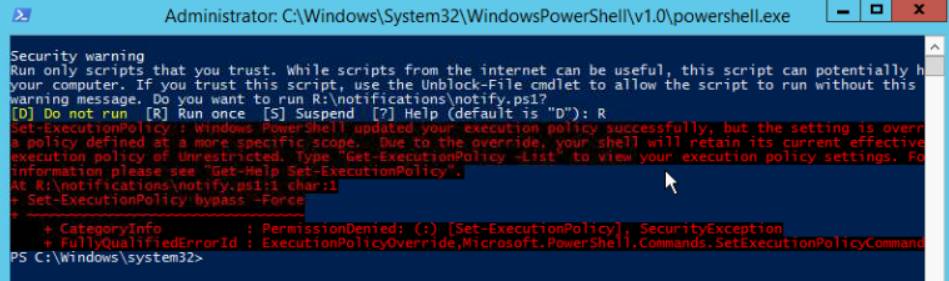
tried all the possible modification of policies and even the Unblock-file cmdlets: nothing to do: the security warning appeared at each execution.
The solution was to move the notify.ps1 script into the C:\ volume (adding a command into the completed.bat file) and then it has been possible to bypass this security warning.
Hope this can help somebody.


