- Subscribe to RSS Feed
- Mark Topic as New
- Mark Topic as Read
- Float this Topic for Current User
- Bookmark
- Subscribe
- Mute
- Printer Friendly Page


- Mark as New
- Bookmark
- Subscribe
- Mute
- Subscribe to RSS Feed
- Permalink
- Report Inappropriate Content
01-10-2016 03:39 AM - edited 03-18-2019 05:24 AM
Hi Gurus,
We have connected three cameras to Cisco C90. All Cameras are connected with Daisy chain and HDMI cables goes to codec.
main camera connected to HDMI one, second camera connected to HDMI 2 and third camera to HDMI 3.
Under video input we have changed the source three interface from DVI to HDMI and type from PC to Camera.
Now I have two problems,
1- For presentation sharing there is no PC option, it is showing only Camera three, DVD and document camera.
2- From Touch panel we are not able to control the camera 3.
We were able to control the camera three with remote but not with touch panel 8.
Kindly advise me to solve above issue.
BR
Solved! Go to Solution.
- Labels:
-
Room Endpoints
Accepted Solutions


- Mark as New
- Bookmark
- Subscribe
- Mute
- Subscribe to RSS Feed
- Permalink
- Report Inappropriate Content
01-10-2016 05:18 AM
What is the current firmware version of the C90?
"1- For presentation sharing there is no PC option, it is showing only Camera three, DVD and document camera."
- What input did you utilized to connect your PC for presentation? What input connector?
You mentioned that you already utilized HDMI input 3 for the third camera so can use available video inputs either input 4 (HDMI) or input 5 (DVI) for PC presentation.

Log in on C90 web interface and check the configuration, Configuration > System Configuration > Video.
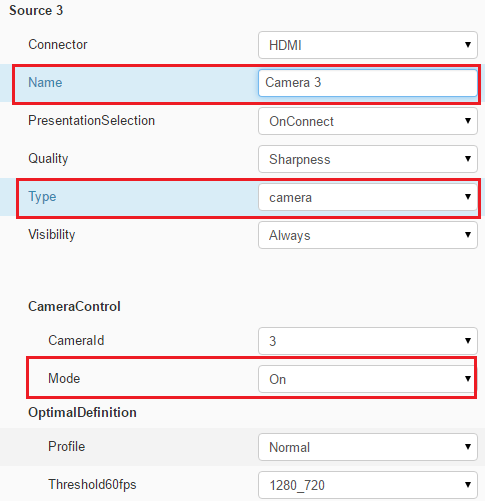
For example, you connected the PC presentation on Input 4 (Source 4) using HDMI as shown in the figure. Change the Name to PC and Type to PC.

"2- From Touch panel we are not able to control the camera 3."
- Check the configuration under your video input Source 3.
Type: camera
Under CameraControl:
CameraId: 3
Mode: On
regards,
Acevirgil


- Mark as New
- Bookmark
- Subscribe
- Mute
- Subscribe to RSS Feed
- Permalink
- Report Inappropriate Content
01-11-2016 09:45 AM
Hello,
Regarding your configuration, confirm the connection are made as the picture below:

White: Camera 1
Red: Camera 2
Green: Camera 3
Blue: Presentation
The reason there is no DVI on source 4 is because each port belongs to a specific "configurable" source, this can be seen on the small circle on top of the connection, can be noticed that there is no DVI input 4.
Also is worth noting that some inputs have the same number as others (see source 3, both HDMI and DVI have the same number) only one of these can be used at the same time and the one that will be used by the codec is the one you configure on the sources page on the web interface.
For example, source 3 you can select either HDMI, DVI or composite I believe. Only the one configured will be used and the other should not be used as the codec will never display it.
After the connections are done properly, go to the video sources page and configure it to be like below:
Source 1: HDMI (camera)
Source 2: HDMI (camera)
Source 3: HDMI (camera)
Source 4: doesn't matter
Source 5: DVI (Presentation)
Then on sources 1, 2 and 3 change the camera control ID accordingly.
You should be able to select the sources properly and see video, make sure you can see video from the 3 cameras and the presentation source (with a laptop connected).
If you cannot see video from the cameras it means that either the HDMI cable going to the codec, the PSU of the camera or the camera itself is not working properly, connect it directly to a display to verify it can give out image and try different cables with it. when connected to a display, the camera will give out image natively.
If you do receive video, go to Configuration >> Peripherals
All the cameras should be recognized, if the last one is missing (and the previous has been verified) the daisy chain cable might be bad.
Make sure you are not using a 4x camera unless it is the last camera in the chain.
- Mark as New
- Bookmark
- Subscribe
- Mute
- Subscribe to RSS Feed
- Permalink
- Report Inappropriate Content
01-10-2016 05:18 AM
What is the current firmware version of the C90?
"1- For presentation sharing there is no PC option, it is showing only Camera three, DVD and document camera."
- What input did you utilized to connect your PC for presentation? What input connector?
You mentioned that you already utilized HDMI input 3 for the third camera so can use available video inputs either input 4 (HDMI) or input 5 (DVI) for PC presentation.
Log in on C90 web interface and check the configuration, Configuration > System Configuration > Video.
For example, you connected the PC presentation on Input 4 (Source 4) using HDMI as shown in the figure. Change the Name to PC and Type to PC.
"2- From Touch panel we are not able to control the camera 3."
- Check the configuration under your video input Source 3.
Type: camera
Under CameraControl:
CameraId: 3
Mode: On
regards,
Acevirgil
- Mark as New
- Bookmark
- Subscribe
- Mute
- Subscribe to RSS Feed
- Permalink
- Report Inappropriate Content
01-11-2016 12:29 AM
Thank you very much Acevirgil for explanation.
My camera control mode is "on" at source three. Type is camera and connector type is HDMI.
But still from touch panel I am not able to move this camera. Kindly advise.
For presentation sharing I am using DVI interface. I am not able to see the connector type DVI at source 4.
However on source 5 I can see DVI connector type. I will use source 5 for presentation sharing and use the DVI 5 interface.
Screen short are attached for reference.


- Mark as New
- Bookmark
- Subscribe
- Mute
- Subscribe to RSS Feed
- Permalink
- Report Inappropriate Content
01-11-2016 09:45 AM
Hello,
Regarding your configuration, confirm the connection are made as the picture below:
White: Camera 1
Red: Camera 2
Green: Camera 3
Blue: Presentation
The reason there is no DVI on source 4 is because each port belongs to a specific "configurable" source, this can be seen on the small circle on top of the connection, can be noticed that there is no DVI input 4.
Also is worth noting that some inputs have the same number as others (see source 3, both HDMI and DVI have the same number) only one of these can be used at the same time and the one that will be used by the codec is the one you configure on the sources page on the web interface.
For example, source 3 you can select either HDMI, DVI or composite I believe. Only the one configured will be used and the other should not be used as the codec will never display it.
After the connections are done properly, go to the video sources page and configure it to be like below:
Source 1: HDMI (camera)
Source 2: HDMI (camera)
Source 3: HDMI (camera)
Source 4: doesn't matter
Source 5: DVI (Presentation)
Then on sources 1, 2 and 3 change the camera control ID accordingly.
You should be able to select the sources properly and see video, make sure you can see video from the 3 cameras and the presentation source (with a laptop connected).
If you cannot see video from the cameras it means that either the HDMI cable going to the codec, the PSU of the camera or the camera itself is not working properly, connect it directly to a display to verify it can give out image and try different cables with it. when connected to a display, the camera will give out image natively.
If you do receive video, go to Configuration >> Peripherals
All the cameras should be recognized, if the last one is missing (and the previous has been verified) the daisy chain cable might be bad.
Make sure you are not using a 4x camera unless it is the last camera in the chain.
- Mark as New
- Bookmark
- Subscribe
- Mute
- Subscribe to RSS Feed
- Permalink
- Report Inappropriate Content
01-13-2016 04:47 AM
Hi Randy,
Thanks for such explanation. Now I am using source 5 for PC sharing. I just change the type PC there and connector DVI. Now its working.
Regarding camera control, I have selected the camera ID 3 for the third camera which is connected on HDMI three ( green as you highlighted) but still from touch panel I am not able to control. However from remote control I am able to control all camera.
Any suggestion or should I go for TAC.
My Touch panel is also working only when I am connecting directly to the codec. When I am trying to connect through network, it is getting IP and releasing. I am using latest firmware.
Kindly also advise on this if possible.
- Mark as New
- Bookmark
- Subscribe
- Mute
- Subscribe to RSS Feed
- Permalink
- Report Inappropriate Content
01-13-2016 09:14 AM
Muhammad,
For the camera control, make sure the camera shows listed under peripherals, if it doesn't, remake the daisy chain cable (as long as the cameras are not 4x).
If it shows listed under peripherals and you cannot control it, try putting it first in the chain (again, as long as this is not a 4x camera) and see if you can control it, if you can, open a TAC request, if not then the camera might just be bad.

Discover and save your favorite ideas. Come back to expert answers, step-by-step guides, recent topics, and more.
New here? Get started with these tips. How to use Community New member guide